
How the LifeHQ Updater works
Update your LifeHQ vault to the newest version without starting over, and without losing anything you've changed.
When I release a new version of LifeHQ, you don't have to start over in a fresh vault and move your notes across. The LifeHQ Updater is an Obsidian plugin that compares your vault with every version of LifeHQ I've ever shipped. It can tell which templates, dashboards and settings you've changed and which you haven't. It updates the ones you haven't touched, and leaves your changes alone unless you tell it otherwise.
Updates are included with a LifeHQ purchase or a Library Pro membership.
Install it (once)
If your vault started from the LifeHQ 2.6 blank vault or later, it's already installed. Look for LifeHQ Updater under Settings → Community plugins.
If you started with an earlier version, install it with BRAT, which LifeHQ already includes:
- Open the command palette (
Cmd/Ctrl + P) and run BRAT: Add a beta plugin for testing. - Paste
bobbleheadjoe/lifehq-updaterand click Add Plugin. - Make sure LifeHQ Updater is turned on under Settings → Community plugins.
Sign in with your purchase email
Run Check for LifeHQ updates from the command palette, or click Check for updates in the plugin's settings. The first time, enter the email address you used to buy LifeHQ or join Library Pro, and click Email me a code.
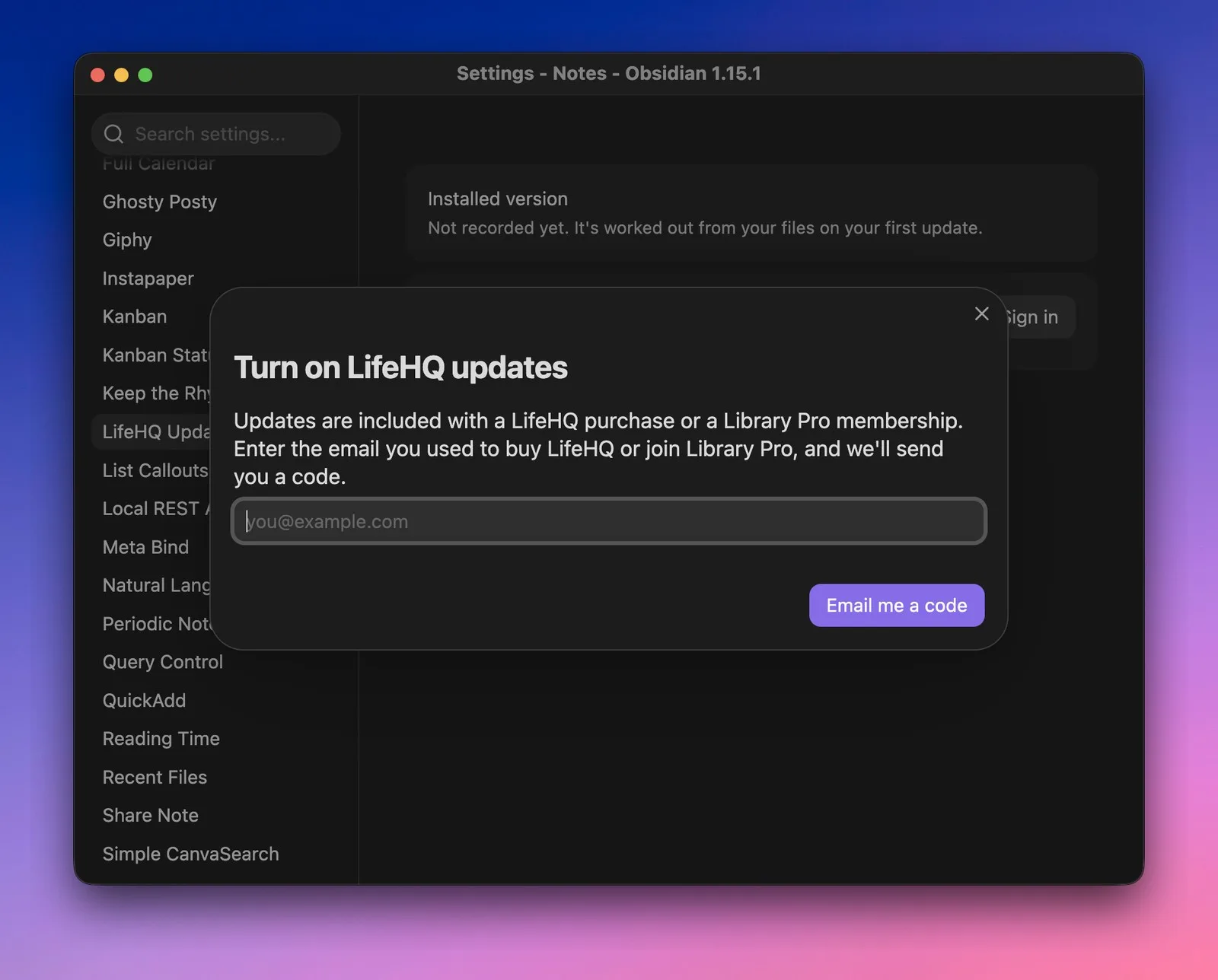
I'll email you an 8-character code. Type it in and click Verify. The code expires after 15 minutes, and once you're in, that vault stays signed in.
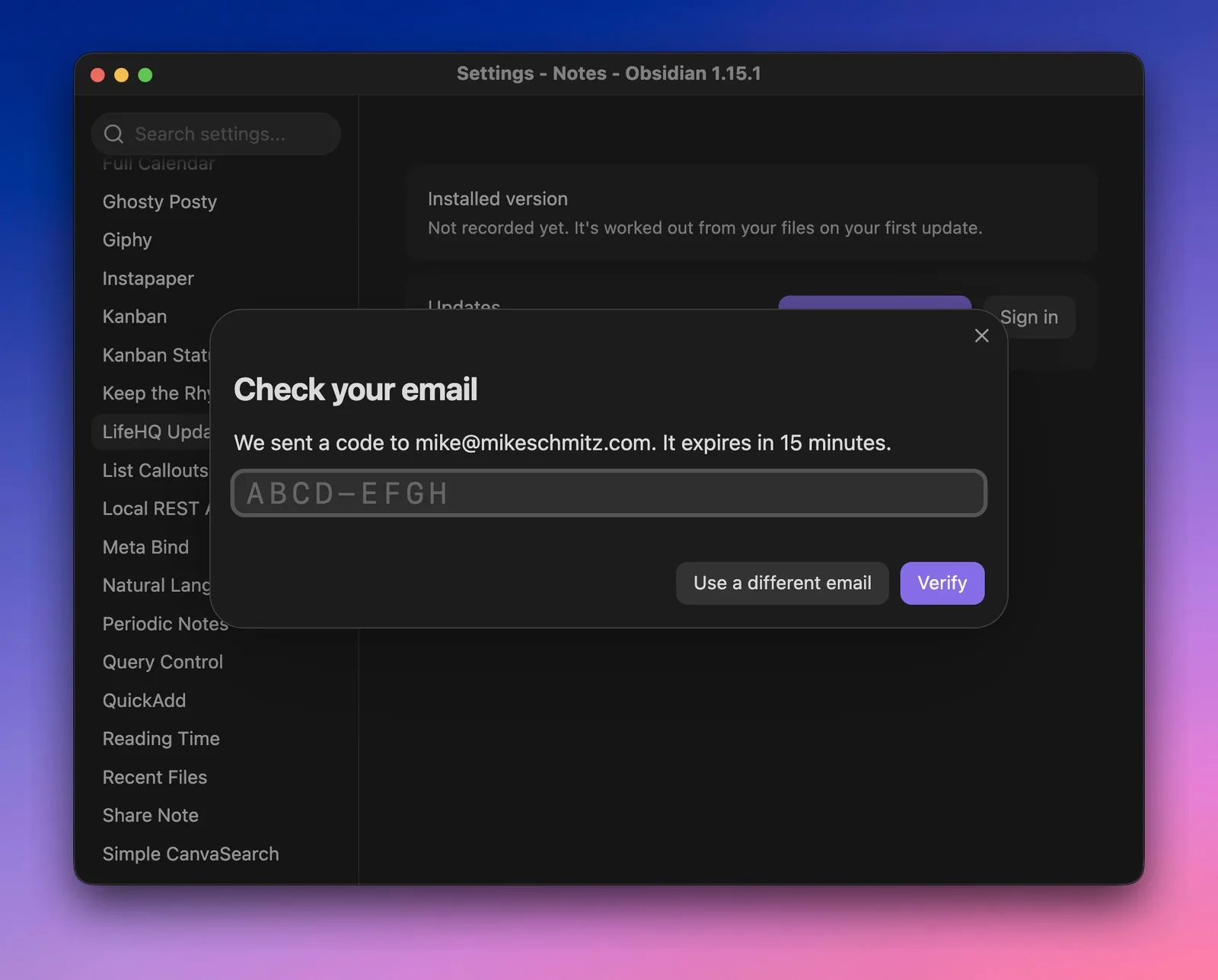
From then on, the updater checks for a new version when you open Obsidian (at most once a day) and lets you know when one is out.
Choose what to update
If there's a new version, it downloads and opens a checklist of every change. Nothing happens until you click the button at the bottom.
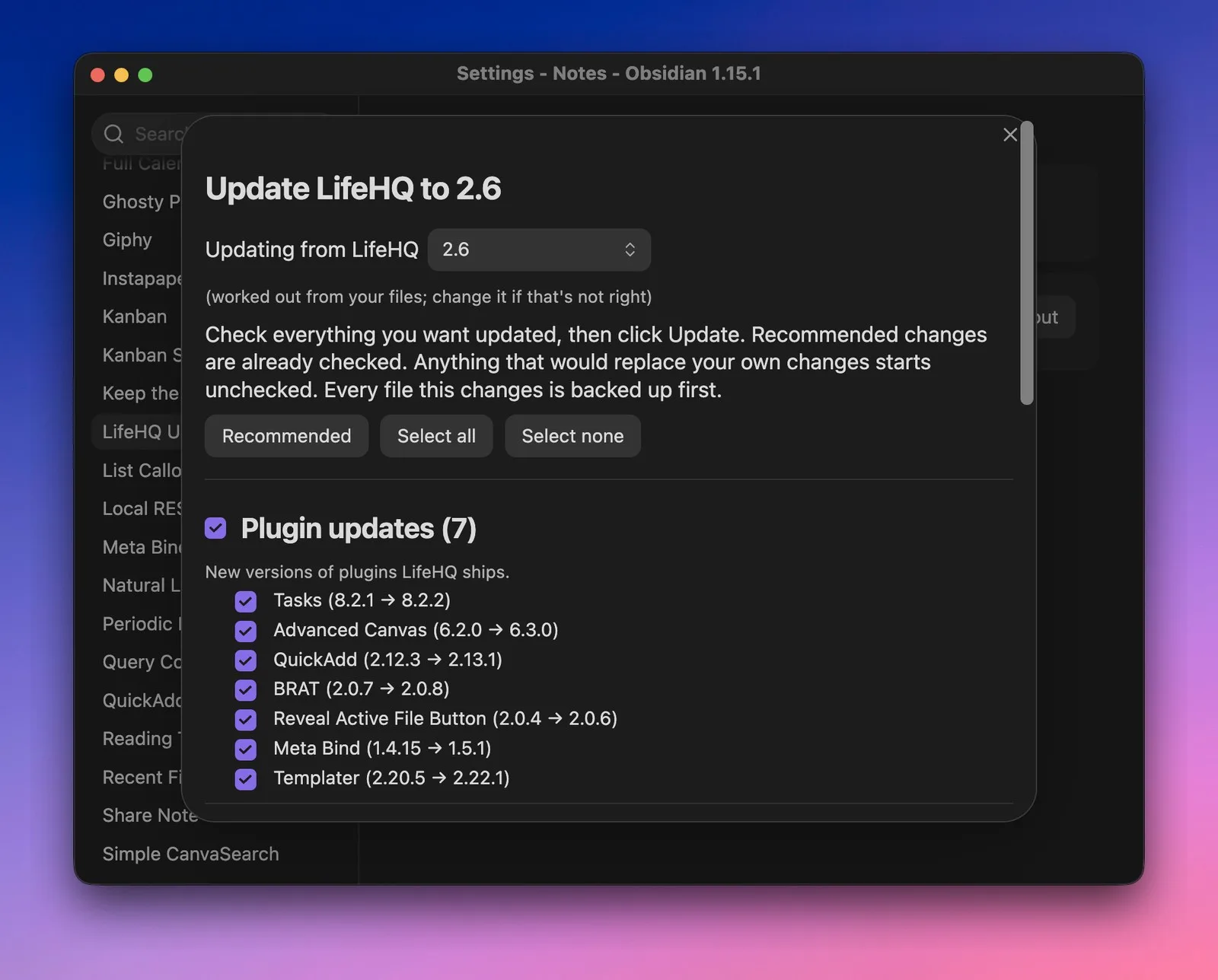
- Updating from: the version of LifeHQ you're on. The first time, it's worked out from your files. If it's wrong, pick the right one and the checklist updates.
- Recommended sets every checkbox to the safe default. Select all and Select none do what they say.
What starts checked, and what doesn't
| In your vault | Starts | If it's checked |
|---|---|---|
| Files you haven't changed | Checked | Replaced with the new version |
| New files in this release | Checked | Added |
| Files LifeHQ moved or renamed | Checked | Moved, and links to them are updated |
| Files LifeHQ retired that you never changed | Checked | Moved into the update's folder (nothing is deleted) |
| Plugin updates | Checked | Updated to the version LifeHQ ships |
| Files you customized | Unchecked | Replaced with my version (yours goes in the backup). Left unchecked, yours stays and my version is saved next to the report so you can compare. |
| Files you deleted or renamed | Unchecked | Brought back |
| Plugins you updated yourself or uninstalled | Unchecked | LifeHQ's version installed again |
Settings get one checkbox each. When a new version changes an Obsidian or plugin setting, you see the old value, the new value, and why I changed it. If you'd already changed that setting yourself, it's marked ✋ and starts unchecked, so your choice stays unless you pick mine. (If you're already on the newest version, there are no setting changes to show.)
Back up, update and reload
Click Back up & update. Before it changes anything, the updater saves the current version of every file it's about to change or move into a zip file in your vault: LifeHQ Updates/LifeHQ <version>/Backup before update.zip. The LifeHQ Updates folder sits at the top level of your vault, and each update gets its own folder inside it. Then it asks you to reload Obsidian.
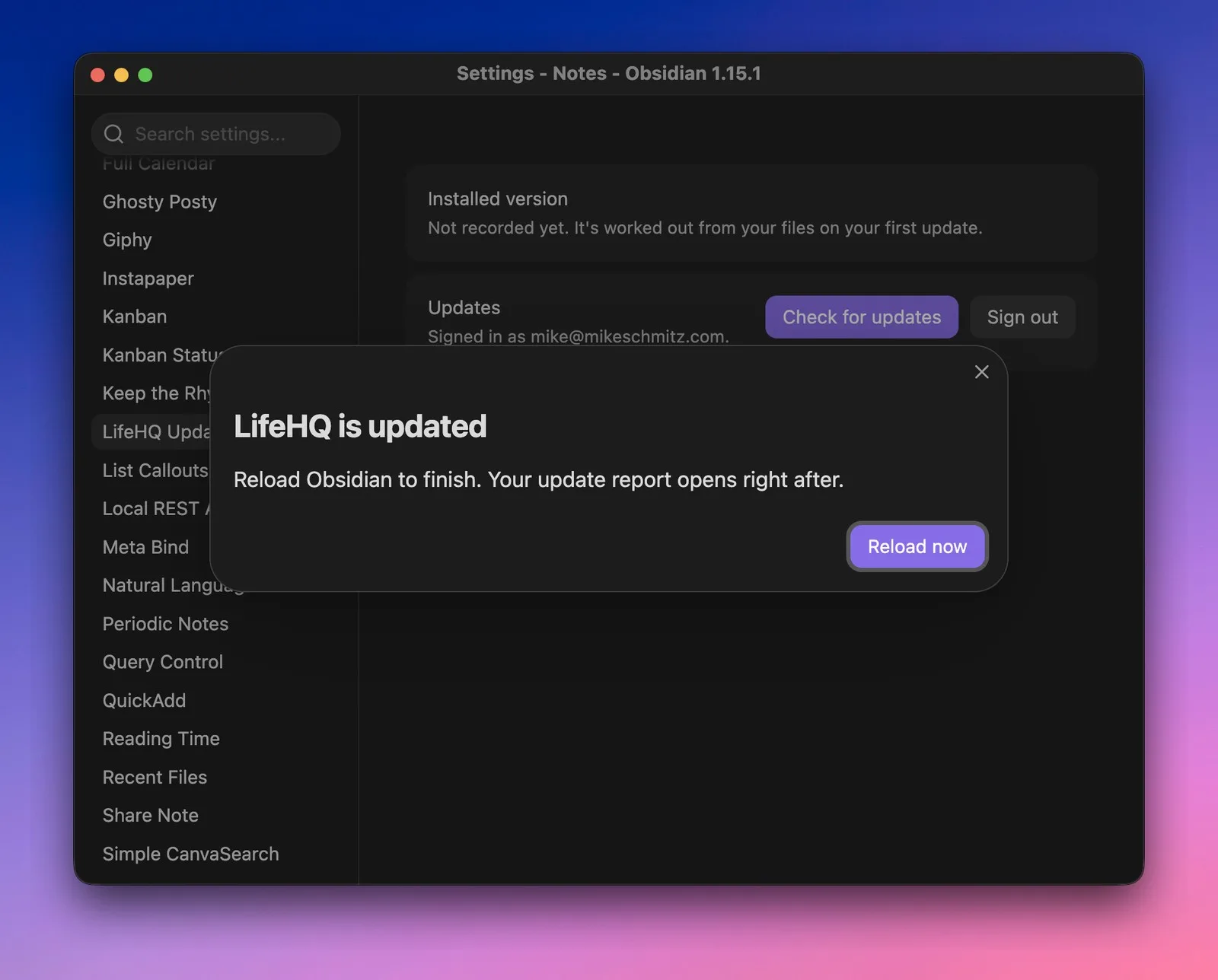
After you click Reload now, your Update Report opens. It lives in LifeHQ Updates/LifeHQ <version>/, along with:
- Update Report: what changed, what was skipped, and why.
- New versions: my version of every file you kept, inside a code block so its tasks and queries don't show up in your dashboards.
- Backup before update.zip: the previous version of every file the update changed or moved, so you can always go back.
What it never touches
The updater only touches files that came with LifeHQ, and only the ones you check. Your daily notes, journal entries, projects, people and everything else you've written are never changed.
If you moved a LifeHQ file, say your templates into a different folder, it finds it where you put it. And it doesn't matter what you named your vault or where it lives.
Questions
What's in each update?
Every version is listed in the LifeHQ release notes, newest first. The Update Report in your vault also lists every file the update changed.
The updater says it can't find my purchase
Use the email address you bought LifeHQ or joined Library Pro with. You can see what that email owns on My purchases.
Where are my backups, and how do I restore a file?
Every update saves one in your vault at LifeHQ Updates/LifeHQ <version>/Backup before update.zip, for example LifeHQ Updates/LifeHQ 2.6/Backup before update.zip. Inside the zip, each file is at the same path it had in your vault. To get a file back, unzip the backup in Finder or File Explorer and copy that file back to the same place in your vault. The updater never deletes these folders, so once you're happy with an update you can delete its folder yourself.
Do I need to download LifeHQ again to update it?
No. The updater brings your existing vault up to date. You only need a fresh download from My purchases if you want to start a new vault.
Something didn't update the way I expected
Open the Update Report first: it lists every change and every file that was skipped. Your previous files are in Backup before update.zip in the same folder. Still stuck? Email me at support@mikeschmitz.com.